I have forgotten my server's password, how do I reset it?
If you have forgotten your server’s password or simply want to set a new one, you can reset it directly from the Contabo Customer Panel.
Important limitations
The Password Reset function works only for Linux servers and resets the password for the root user.
It does not work for the Windows Administrator account.
Due to Microsoft’s security restrictions, Contabo cannot generate or reset the Administrator password for Windows servers.
If you lost access to a Windows server, please refer to the Contabo blog article on how to recover your files in that scenario.
Resetting the Root Password for a Linux Server
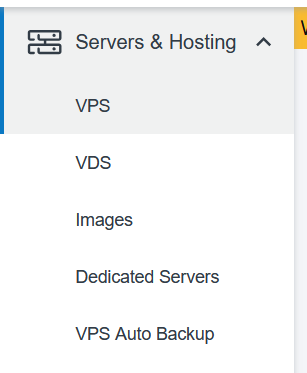
1. Open the Servers & Hosting Section
After logging in at https://new.contabo.com, click on Servers & Hosting in the left-side navigation menu.
2. Select Your Server Type
Choose the corresponding product category - VPS, VDS, or Dedicated Servers - depending on which server you want to reset.
3. Open the Server Options Menu
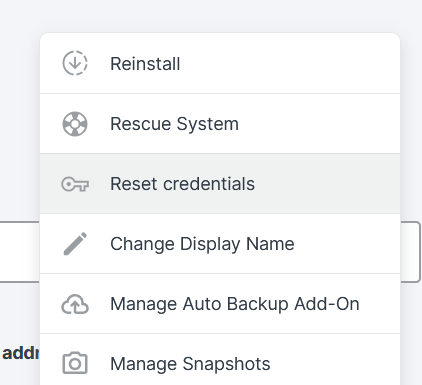
Locate your server in the list, then click the three-dot menu (⋮) to open additional actions.
4. Select Reset Credentials
From the drop-down menu, click Reset credentials to open the password reset interface.
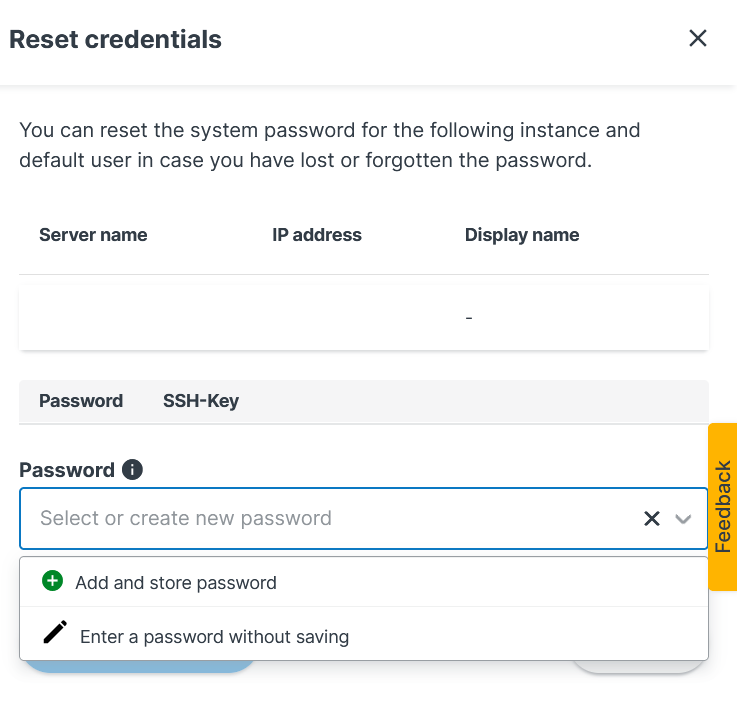
5. Choose How to Set the New Password
Under Password, choose one of the available options:
- Add and store password: Enter or generate a new password and assign a name. It will be securely stored in the panel.
- Enter a password without saving: Enter a new password that will not be stored in your account.
6. Start the Reset Action
Click Reset credentials to proceed with applying the new password.

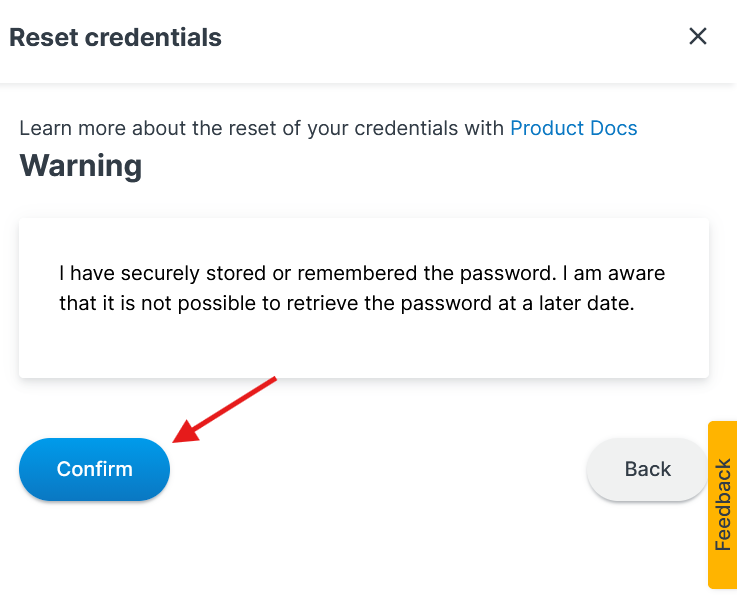
7. Confirm the Warning
Confirm that you have securely stored the password. Click Confirm to finalize the reset process.
⚠️ Important: Make sure to remember or securely store your new password. It cannot be retrieved later
8. Wait for Completion
The reset process will take a few minutes. Your server will apply the newly set root password.
9. Log In Using the New Password
After the process completes, you can access your server using the newly configured root password.
Was this article helpful?
That’s Great!
Thank you for your feedback
Sorry! We couldn't be helpful
Thank you for your feedback
Feedback sent
We appreciate your effort and will try to fix the article
